
Buttons, indicators and sounds
Connect your own Parts or Models in Buttons. Choose the piece that should move and leave its fixed housing separate.
Get started
Connect your own Parts or Models in Buttons. Choose the piece that should move and leave its fixed housing separate.
| Button motion | Result |
|---|---|
| Press | Moves to its pressed pose briefly, then returns |
| Toggle | Holds its active pose while the connected action is active |
| None | Activates the mechanism without moving the button |
Choose Set pressed position to edit the moving piece with viewport handles. The button can be round, rectangular, a rocker or a lever.
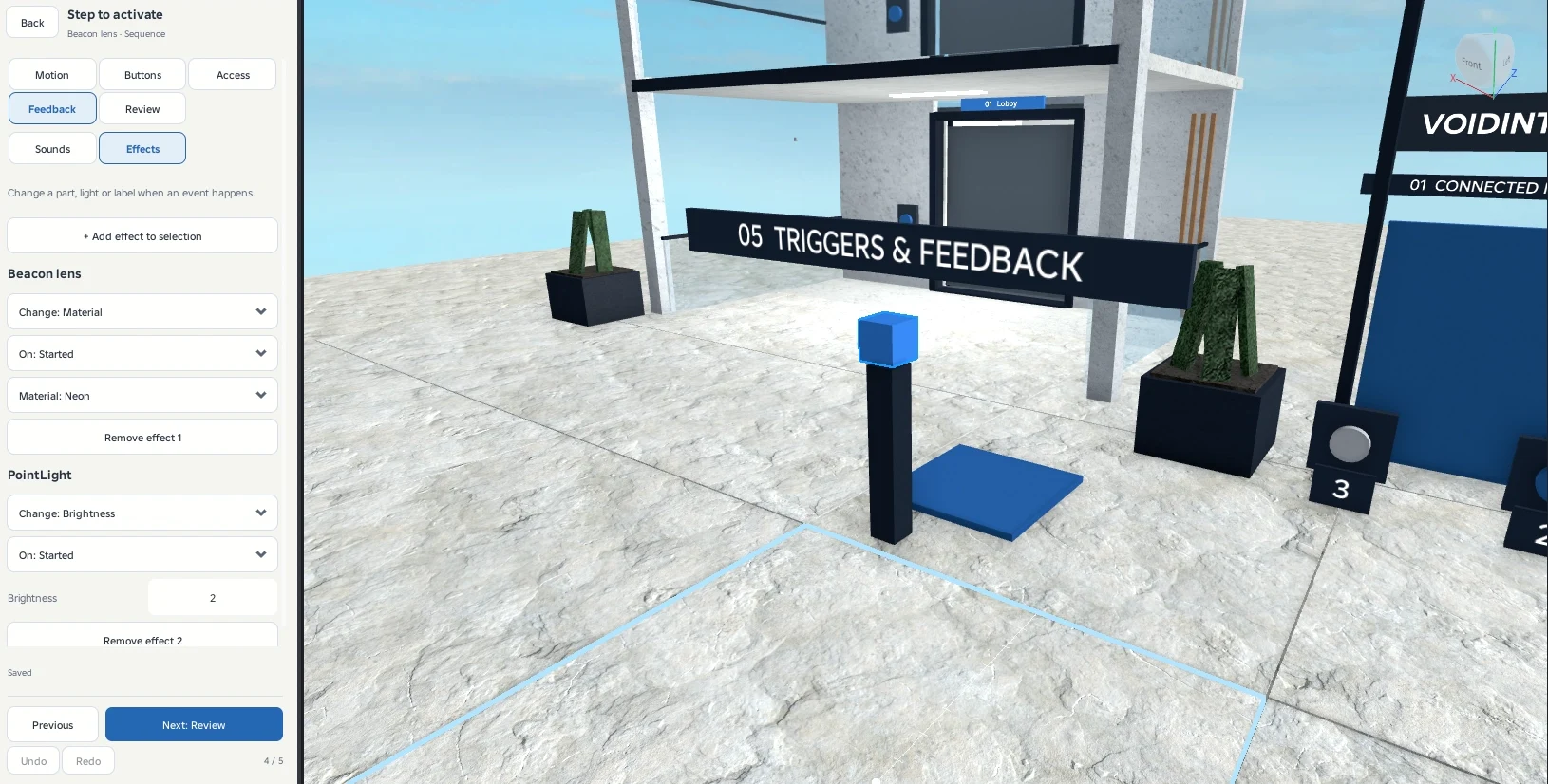
Show the button state
Select your indicator part or light. Choose colors for Active, Waiting and Unavailable using the color picker. Elevator buttons distinguish the current floor from a requested floor. A light indicator can change its color and enabled state. Use Back to close the color picker and return to the same button settings.
Add sound
In Feedback, enter your own numeric sound asset IDs for start, movement, stop, denied access and button press. Set volume and sound range. The movement sound loops while movement is active and stops when the mechanism finishes or becomes blocked.
Use audio that your experience has permission to play.
Change a property
Select the target and add an effect. Choose Started, Arrived, Stopped, Blocked or Denied, then choose the property and value.
| Target | Available changes |
|---|---|
| Part or MeshPart | Color, material, transparency |
| PointLight, SpotLight or SurfaceLight | Color, brightness, enabled state |
| TextLabel or TextButton | Text |
For an elevator display, use Add selected display label and choose Floor, Direction or Status. Floor shows the names you gave the stops.