
Positions, pauses and states
Use Multi-step motion for a route. Use Multiple states when players should choose a destination by name.
Get started
Use Multi-step motion for a route. Use Multiple states when players should choose a destination by name.
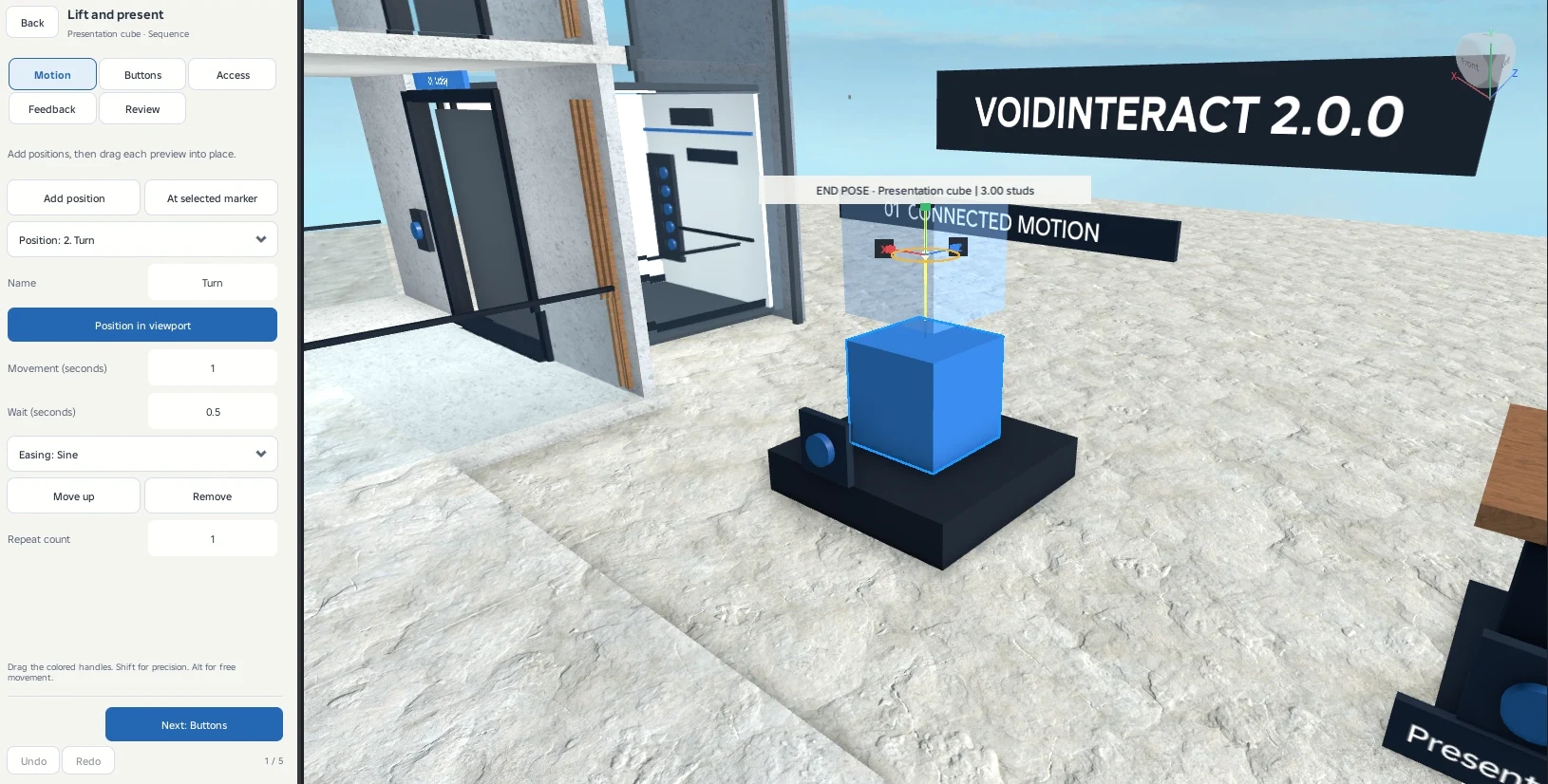
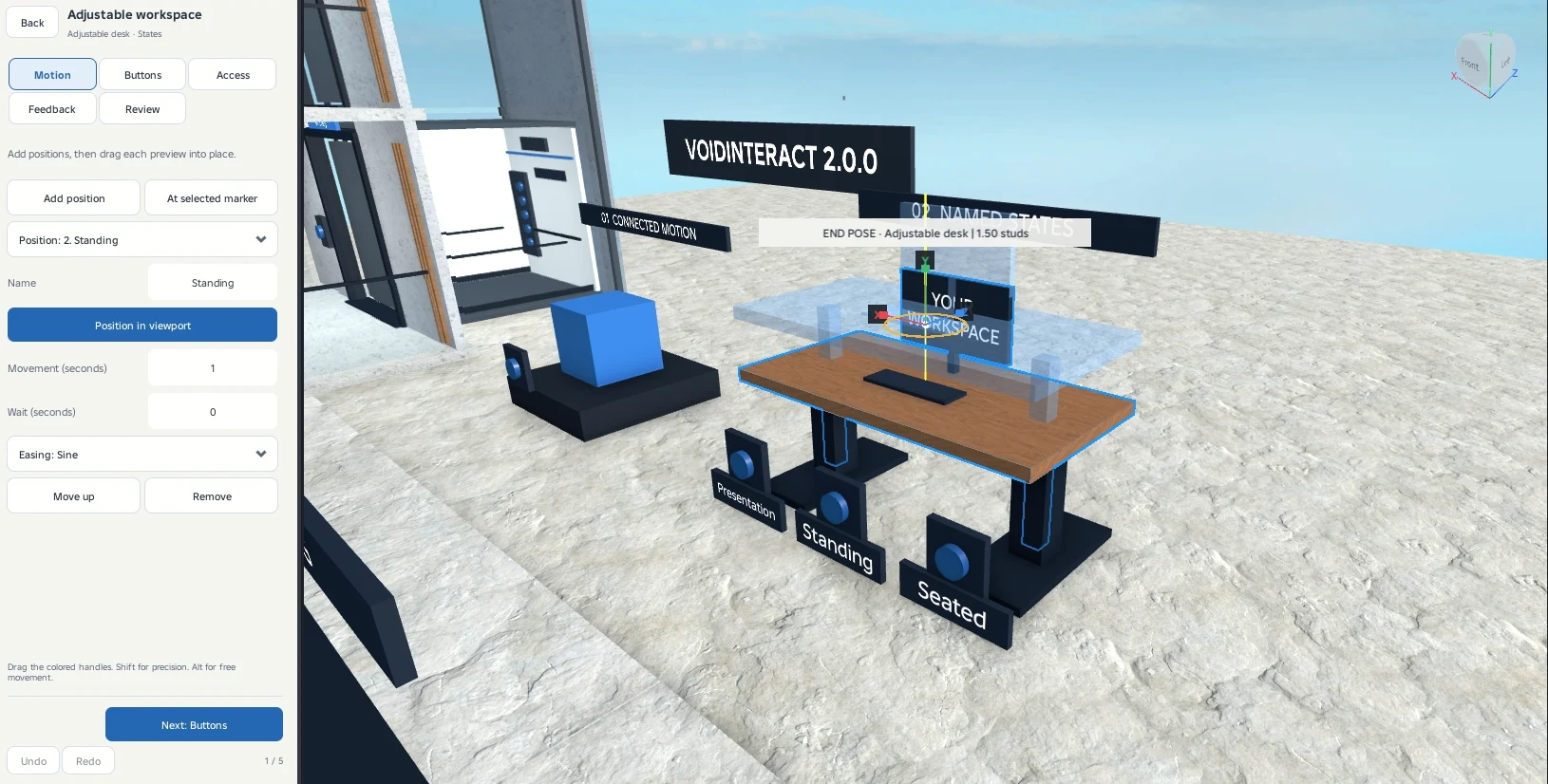
Make a route
- Select your anchored moving Part or Model and choose Systems → Multi-step motion.
- Add a position. Choose Position in viewport and move or rotate the preview.
- Set the movement time and optional wait at this position.
- Add the next position. Choose each saved position from the Position menu to edit it.
- Preview the route from Review, then apply and test in Play.
Each position is relative to the object's original pose. A route can raise a prop, turn it and move it into a display position. Fixed supports stay outside the moving Model.
Repeat count repeats the route. After the last position, another repeat travels to the first position. Include the return positions you want the object to follow. Reverse follows the route back to the original pose.
Choose a named state
Create states such as Stored, Raised and Presented. Give each a different name and set its pose. In Buttons, connect a button and use the state name as its action. Next cycles through the states.
The moving object travels from its current pose to the selected state. A group or a server script can select the same states.
Work with precision
Drag the colored viewport handles. Shift uses 0.01-stud translation or 5-degree rotation. Alt bypasses snapping. Preview the complete path to check clearance before saving.
Combine mechanisms
Choose Connected mechanisms on a separate controller object. Add your saved targets, choose their actions and choose Together or Sequence. A sequence waits for each target to finish before starting the next. Each connection can have a delay.
Use Check connections, apply and test the group in Play. If a connected mechanism is blocked or missing, inspect it in Manage saved interactions.