
Build an elevator with your own models
Use your own cabin, door leaves, buttons and display. Choose the shapes, materials and sounds that fit your build.
Get started
Use your own cabin, door leaves, buttons and display. Choose the shapes, materials and sounds that fit your build.
Prepare the cabin
- Put the cabin's anchored parts inside one Model. Keep the shaft and landing doors outside it.
- Select the cabin and open Systems → Elevator.
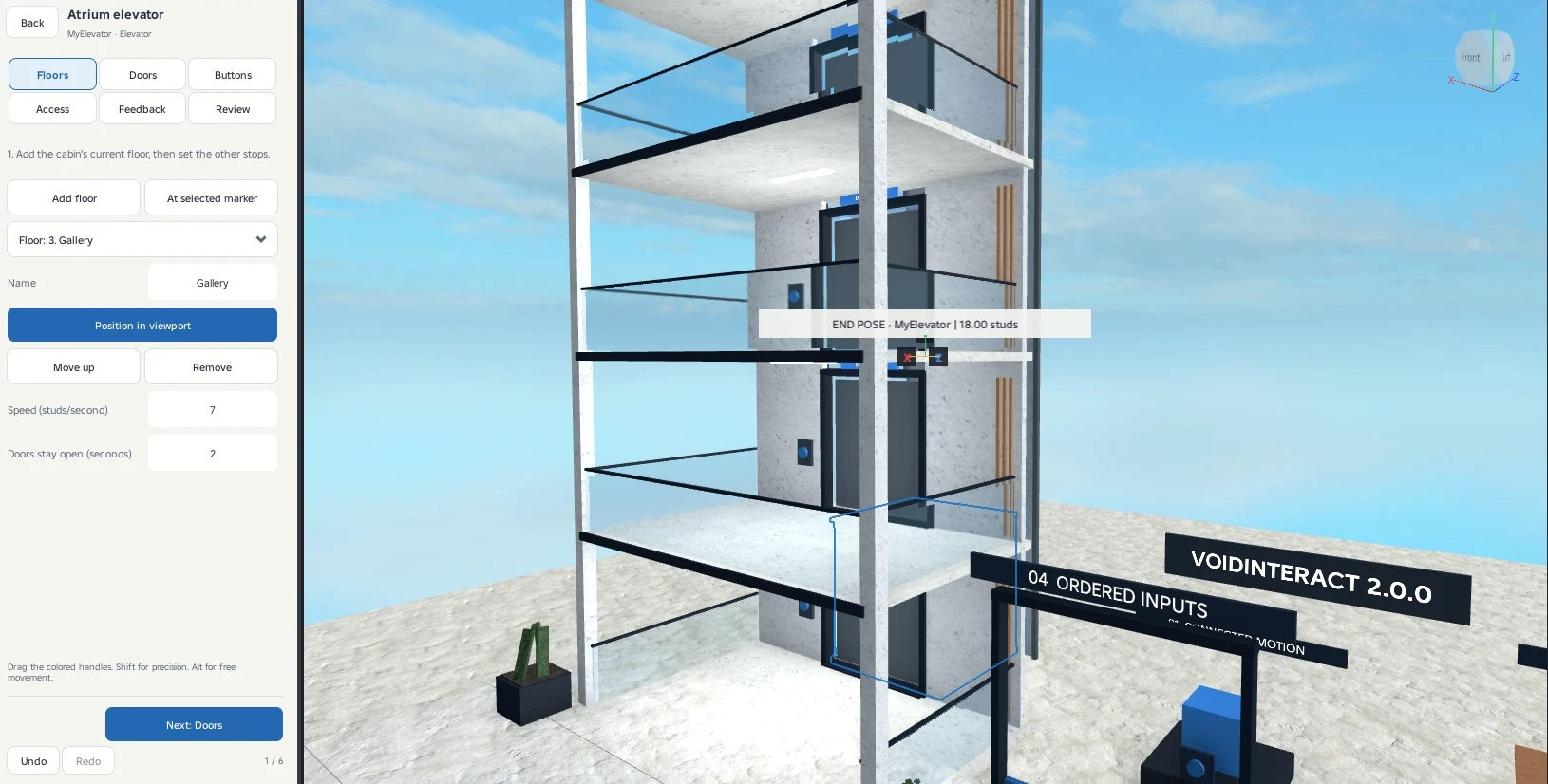
Place the floors
- Add the current floor first. Add another floor and use Position in viewport to place its stop. Repeat for the remaining floors.
Connect the doors
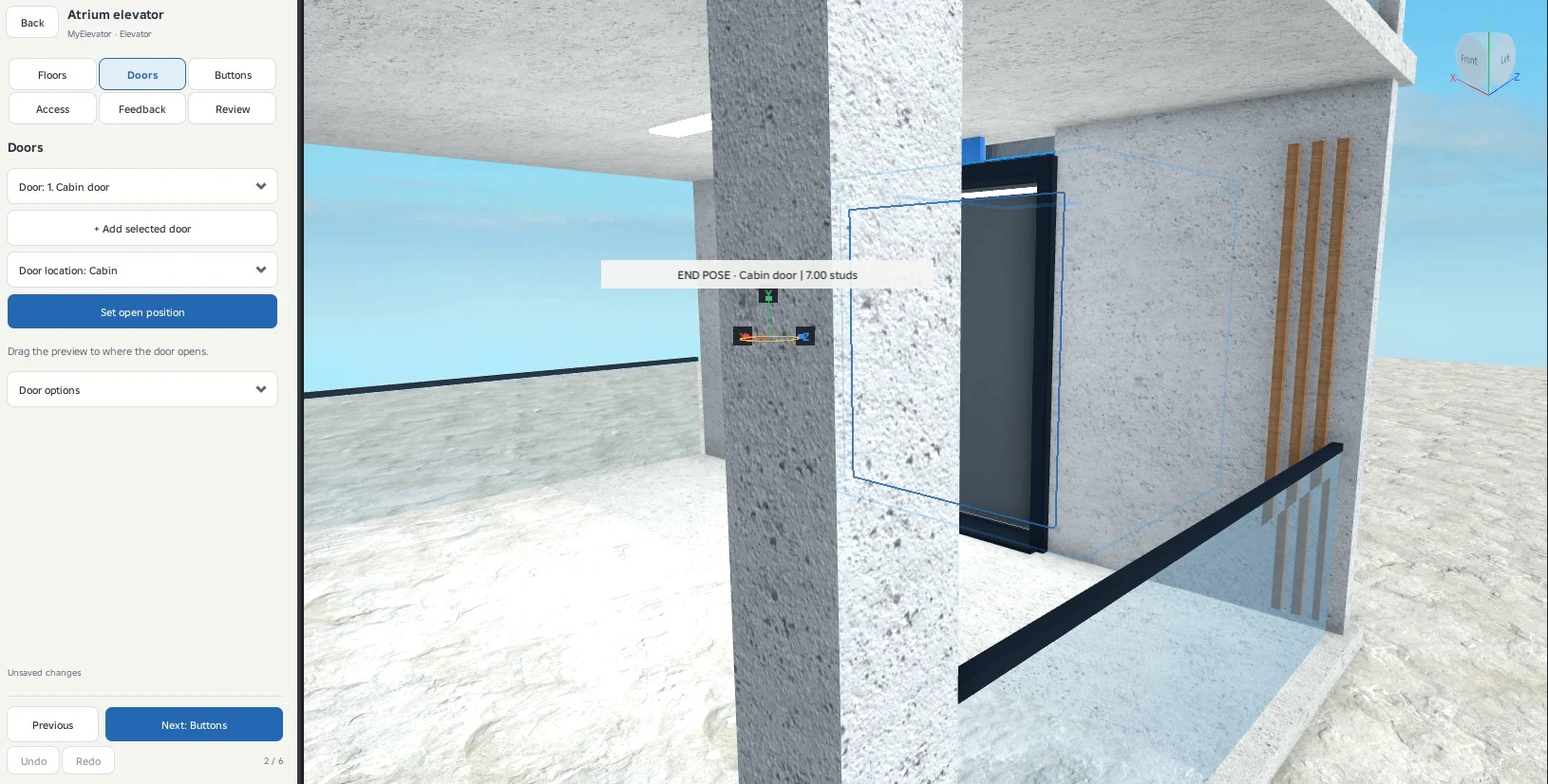
In Doors, select each moving leaf. Choose Cabin for a leaf inside the cabin, or its floor number for a landing door. Set its open position with the viewport handles.
Connect your buttons
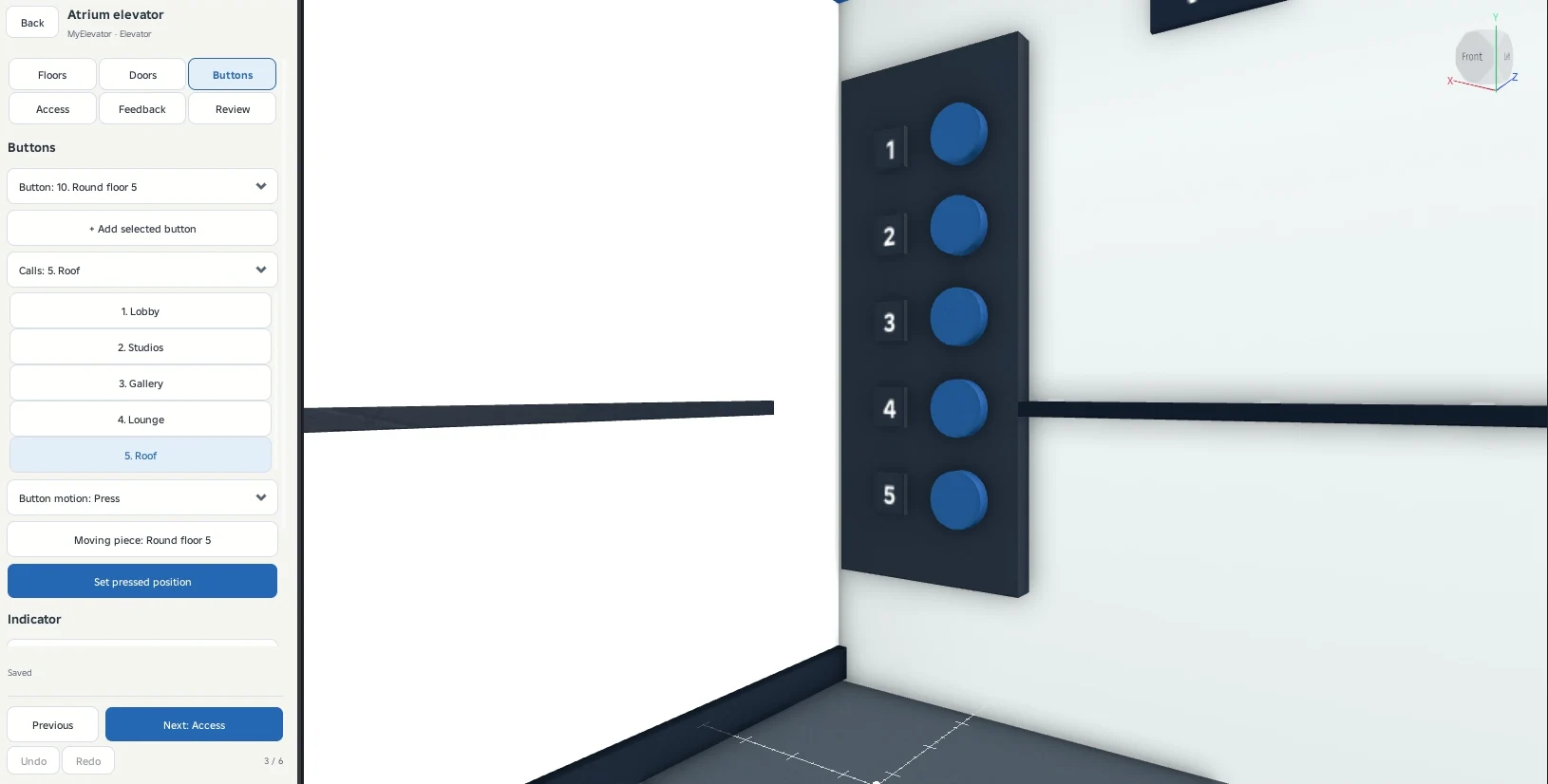
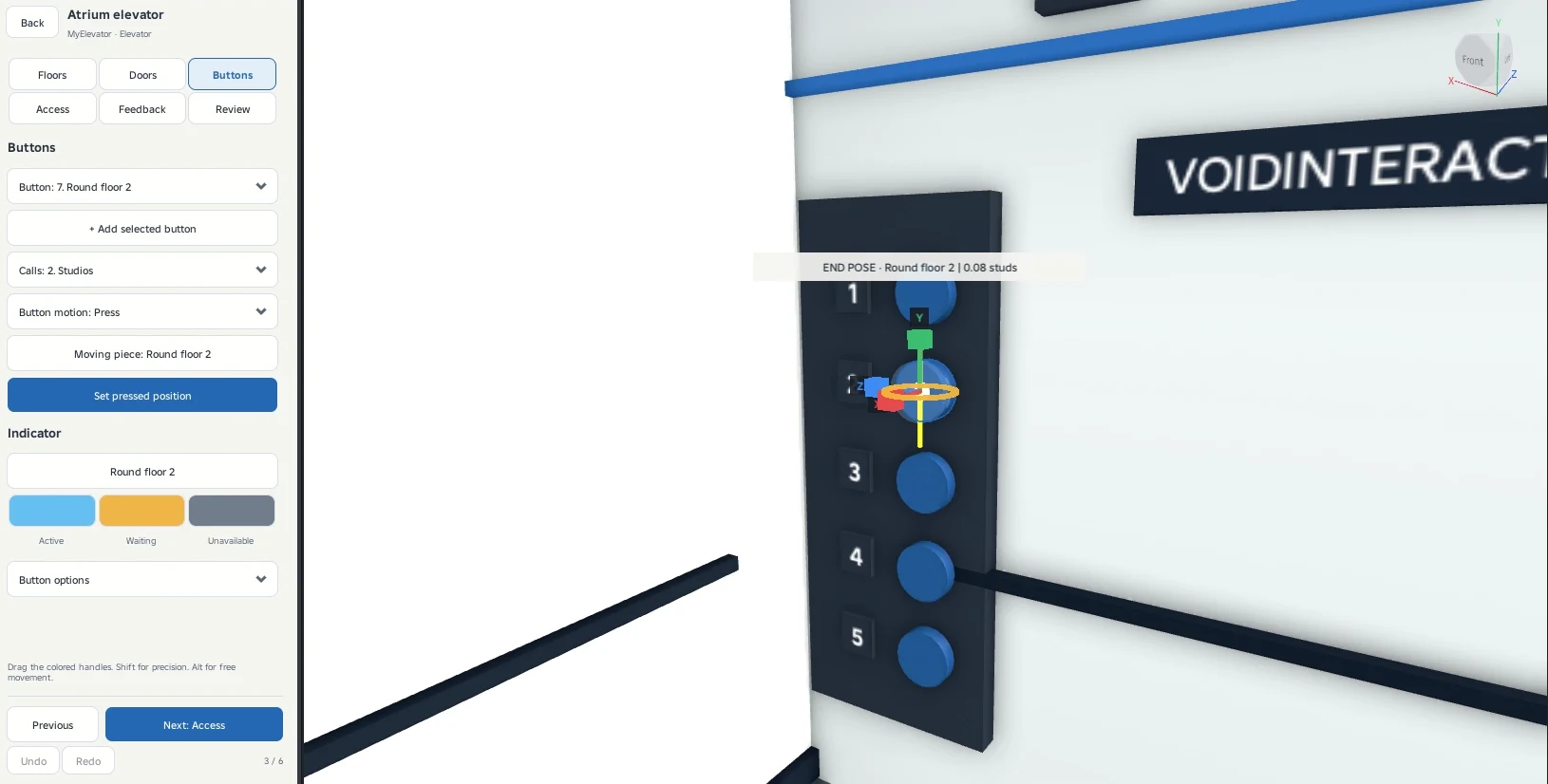
In Buttons, select your button, choose its destination from Calls, and select the piece that moves when pressed. Choose Press, Toggle or None. The fixed housing stays still.
Add sound and a display
In Feedback → Sounds, enter your sound IDs. To show the floor, open Feedback → Displays, select a TextLabel in your own display and choose Add selected display label.
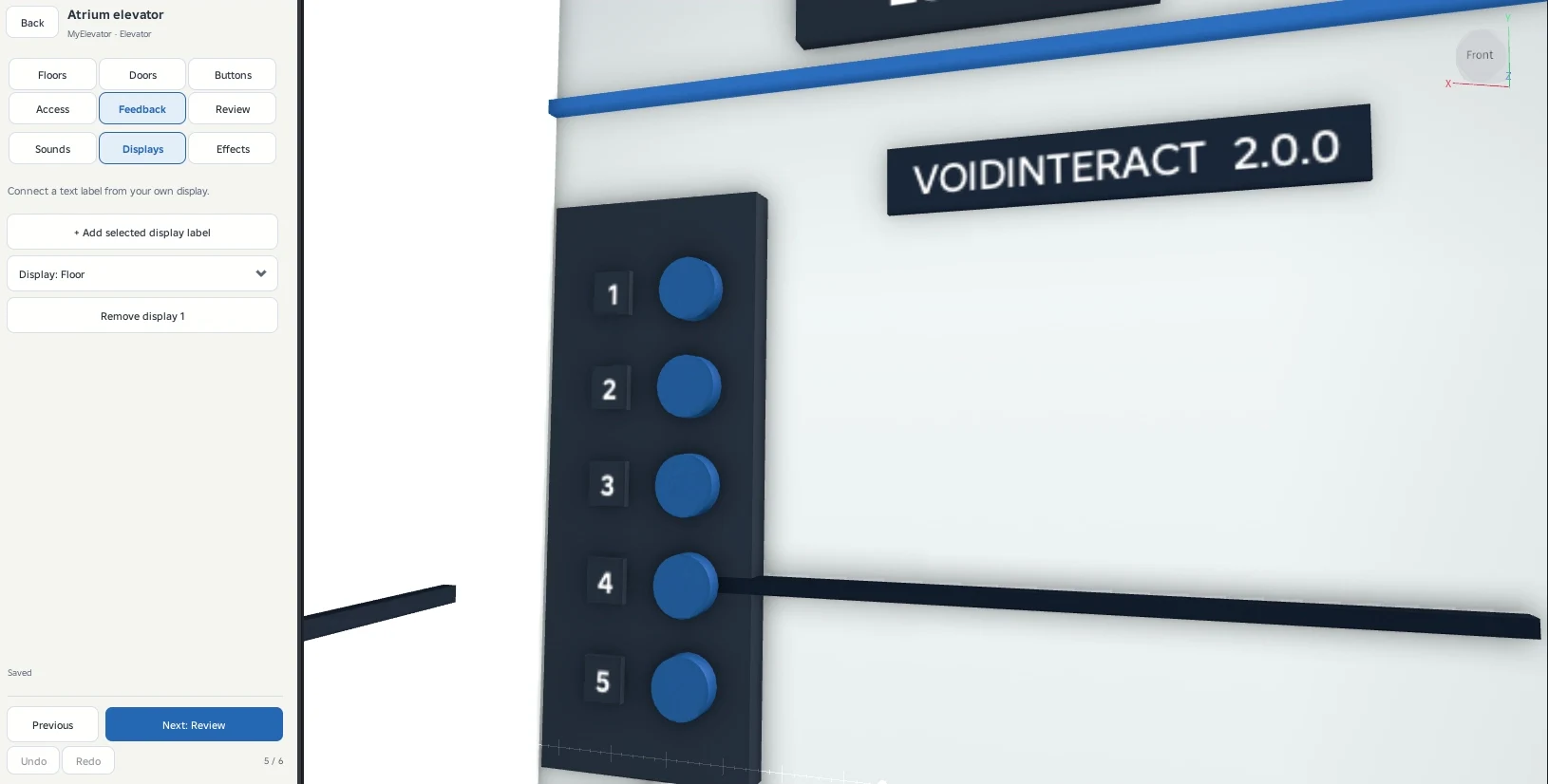
Test the complete trip
Preview the cabin route, apply and test in Play. Check every landing and door. Walk around inside the cabin while it travels, then step out at a landing.
Requests wait in a queue. Repeating a pending floor does not add another stop. Closing doors reopen when obstructed. The cabin waits for its doors to close before travelling.
Reordering floors keeps their buttons and landing doors connected. Before removing a floor, reassign its buttons and doors.
Use the Floor, Door and Button menus to edit one item at a time. Set the open position with the blue action button. Door options contains replacement and removal. Button options contains replacement, removal and indicator removal.
Set indicator colors
Indicators can show the current floor, a pending request or an unavailable control. Select the Active, Waiting or Unavailable color swatch to choose its color. Back closes the color picker and returns to the same button. Undo restores the color from before that editing session.
If the cabin stops against an obstruction between floors, it retries the route and continues when it is clear. The doors remain closed during travel.