Build connected interactions
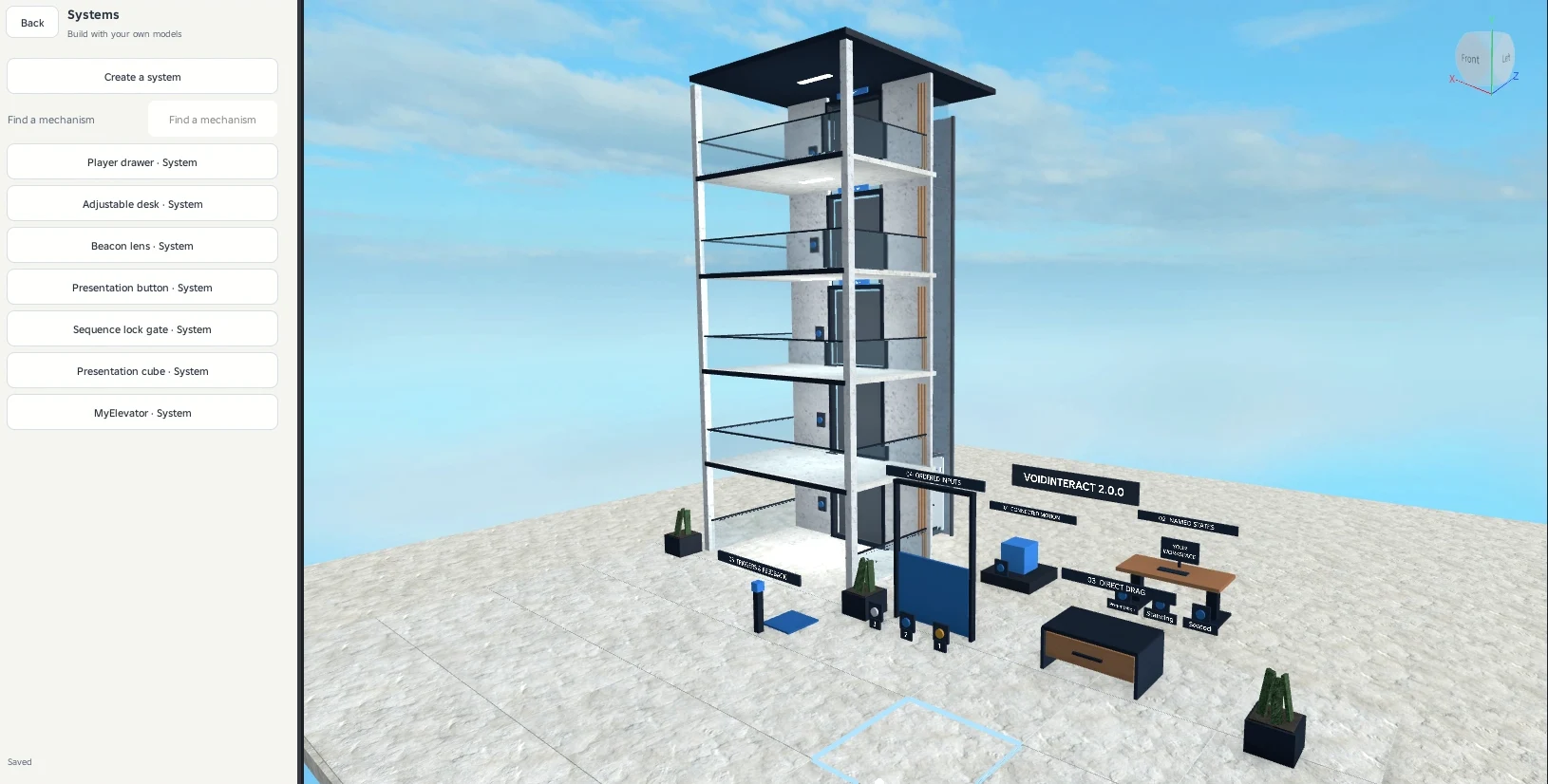
Select your Part, MeshPart or Model and open Systems.
Get started
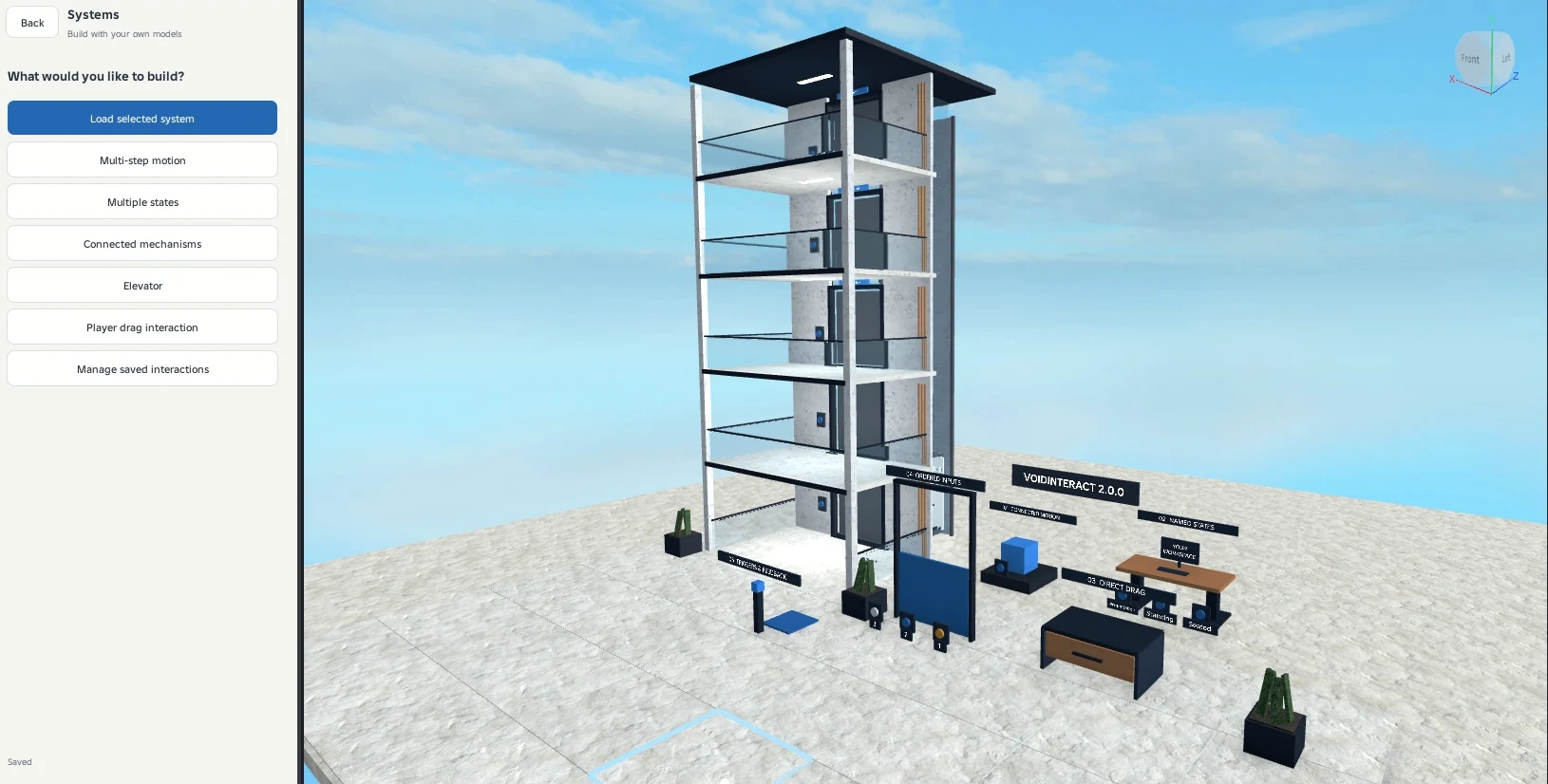
Select your Part, MeshPart or Model and open Systems.
| Choose | Build |
|---|---|
| Multi-step motion | A route with several positions, rotations and pauses |
| Multiple states | Named positions such as Stored, Raised and Presented |
| Connected mechanisms | A group that activates saved mechanisms together or in sequence |
| Elevator | A cabin with floor buttons, doors and queued requests |
| Player drag interaction | An object players can slide or rotate within a defined range |
The selected moving parts must be anchored. Keep fixed frames separate. A body uses one movement system at a time.
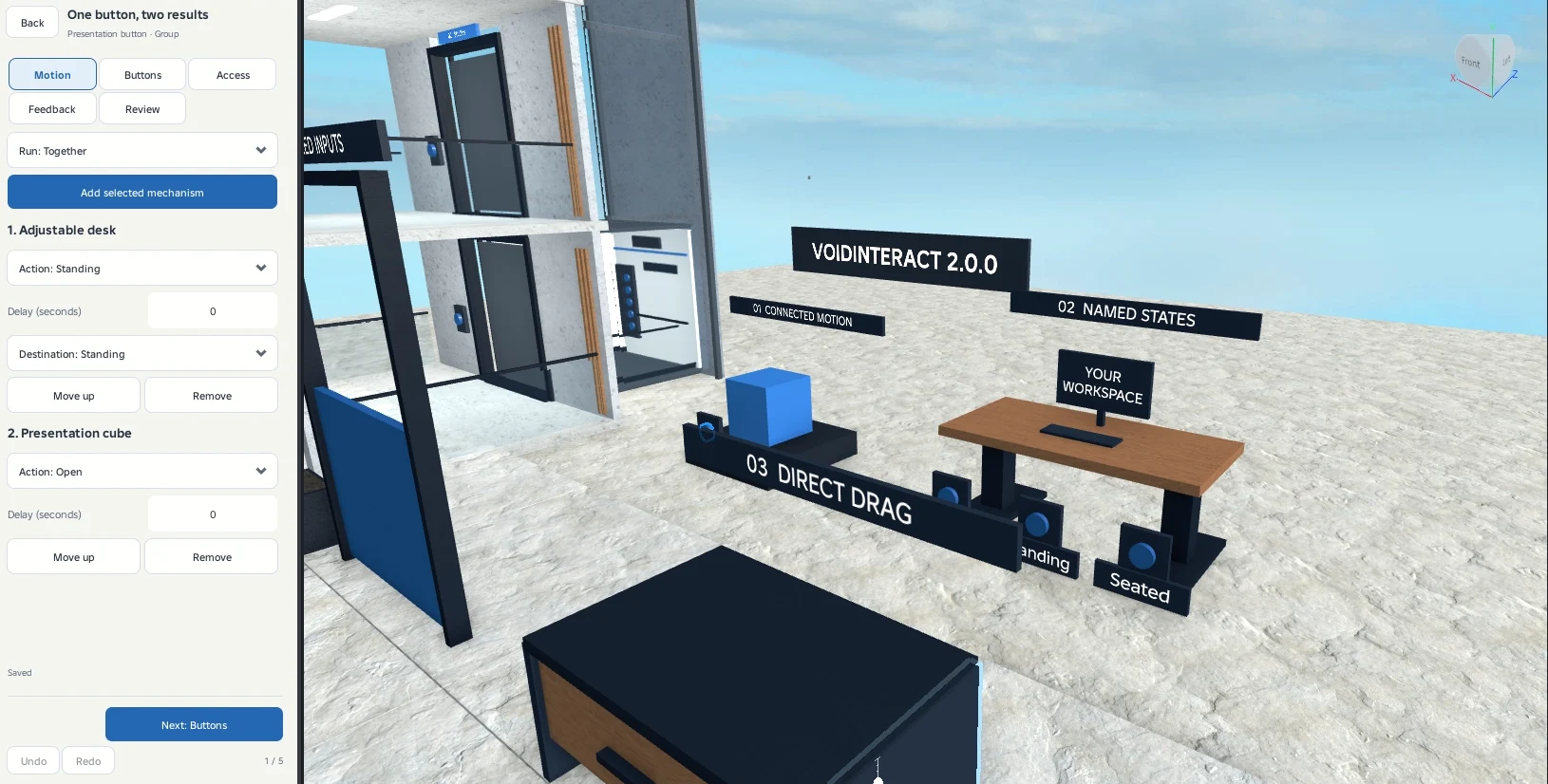
Use Motion to set the route, Buttons to connect buttons, Access to choose activation and access, and Feedback to add sound or visual responses. Review contains preview, Apply and reusable templates. Elevator setup uses Floors for the stops and adds a separate Doors section.
Viewport handles support snapping, Shift for precision and Alt for free movement. Shift uses 0.01-stud movement or 5-degree rotation.
Reuse a behavior
Save a behavior template from Review. Load it onto your new model, then use the Connect buttons to select replacements for the original controls, doors and other references. Review the movement on the new geometry before applying.
Connect existing work
Groups can connect an existing basic door or light with a new system. Select each saved mechanism and choose its action. Choose Together for parallel activation or Sequence to wait for each mechanism before the next begins.
Activation and conditions
Choose a prompt, proximity, region, pressure plate, timer or another mechanism's completion. A pressure plate can respond to players or an object you select. Conditions can require a named mechanism state, a team or a key Tool. Ordered button inputs let you define a sequence such as A, B, C.
Feedback
Choose your own start, movement, stop, denied and button sounds. Events can change a part's color, material or transparency, a light's color, brightness or enabled state, or the text on your display.
Find and edit
Use Manage saved interactions to search and reload a mechanism. Missing references and invalid settings appear there. Draft Undo and Redo change the current draft. Studio Undo and Redo restore saved edits.