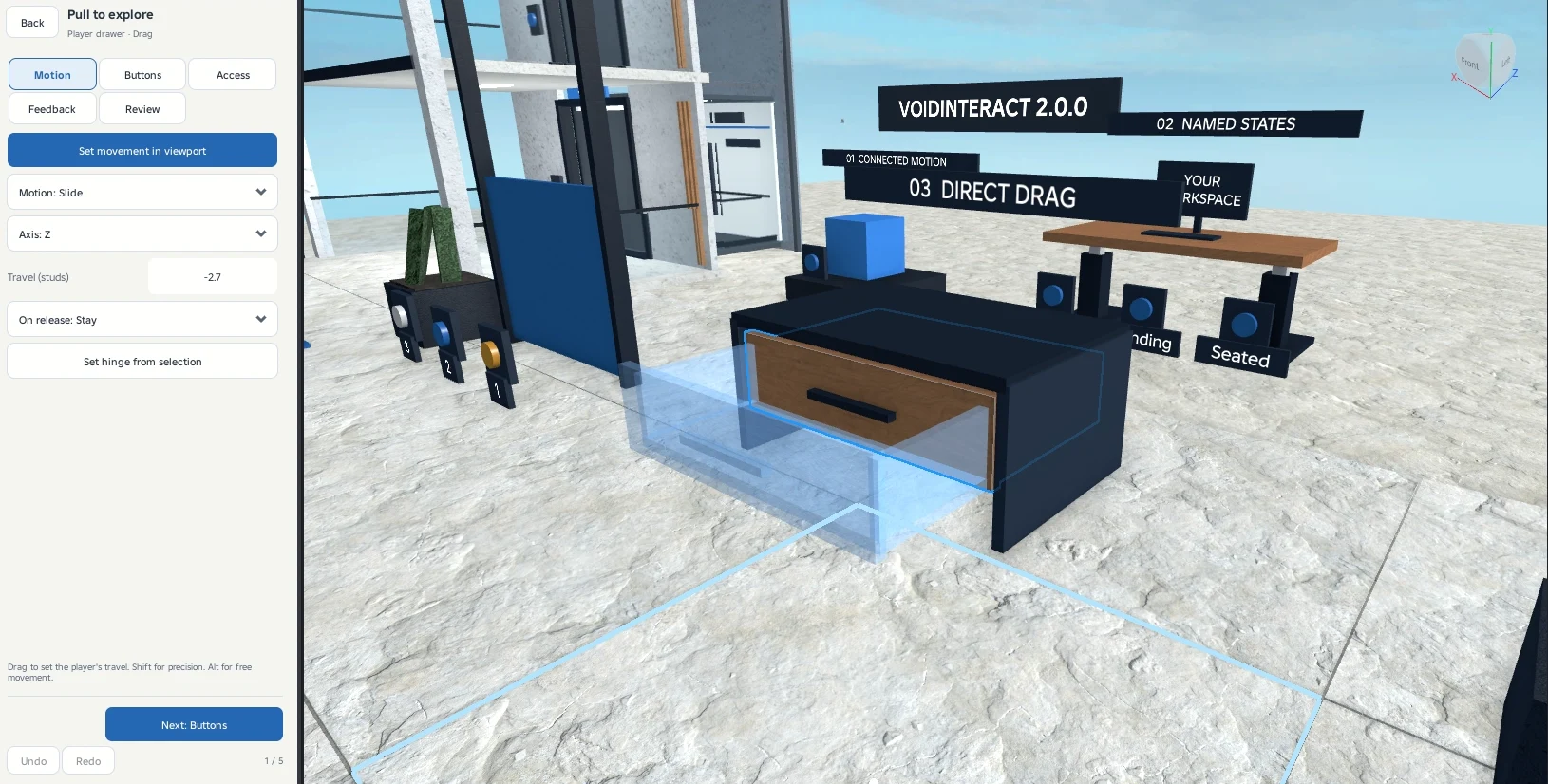
Let players drag an object
Configure a drawer, lever or door using your own anchored geometry.
Get started
Configure a drawer, lever or door using your own anchored geometry.
- Select the moving piece and choose Systems → Player drag interaction.
- Choose Slide or Hinge and the movement axis.
- Choose Set movement in viewport. Drag the handles to set the available travel or opening angle.
- For a hinged object, place the pivot on its hinge edge. You can select a marker and use Set hinge from selection.
- Choose whether the object stays where released or returns to its starting pose.
- Set activation distance and access rules. Preview, apply and test in Play.
The range limits the movement. A player cannot pull the object beyond its configured endpoints. One player controls a drag at a time. Moving too far away, dying or leaving releases control.
Keep fixed rails and frames outside the moving Model. If movement stops against another part, inspect the obstruction before increasing the travel.