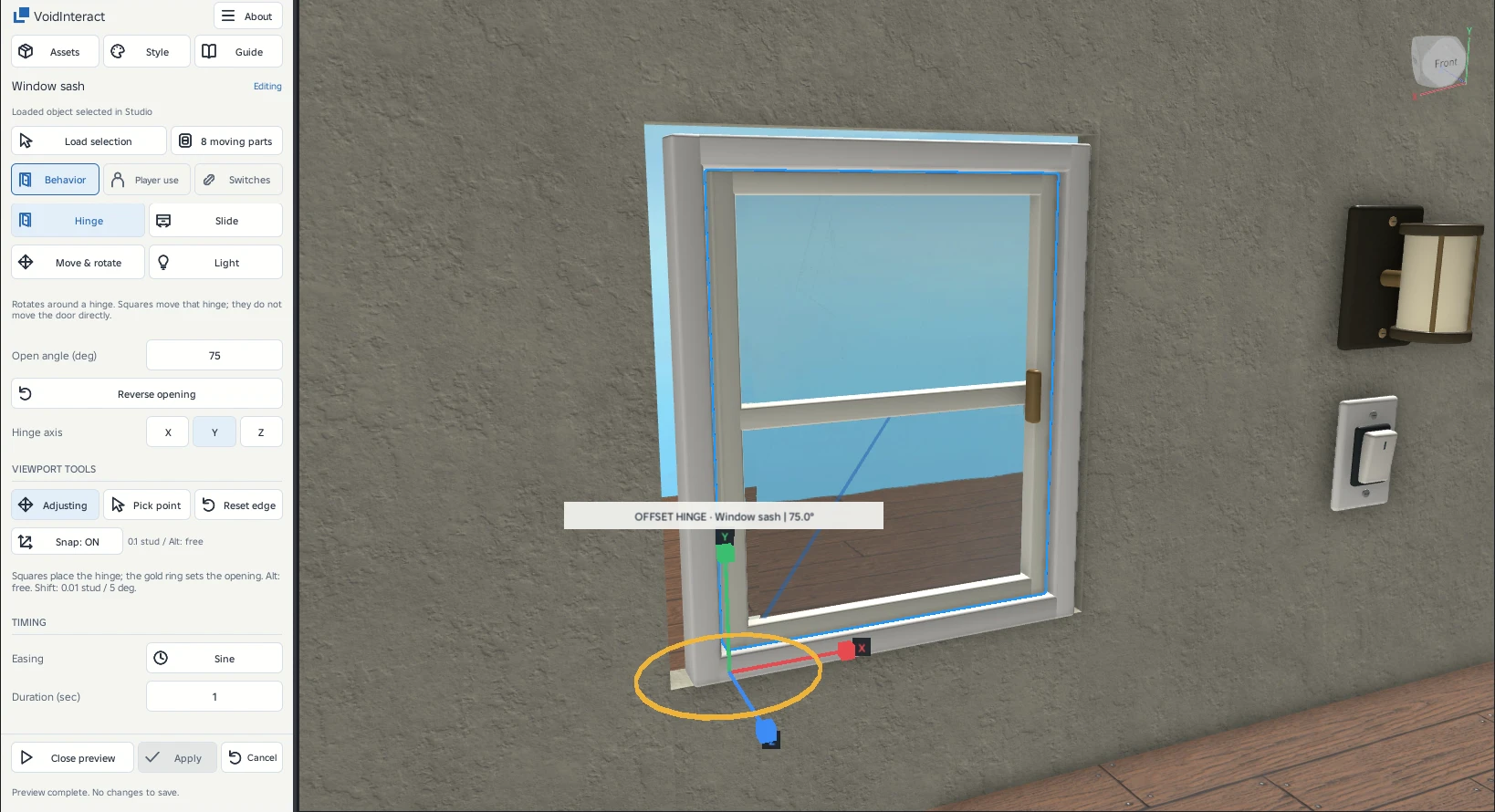
Hinge motion
Place the pivot and turn the opening arc while the ghost shows the result.
Squares move the hinge, not the door
Hold Shift while dragging the ring for 5-degree steps. SNAP 5 deg appears beside the angle. Nearly end-on movement axes ask you to turn the view slightly instead of accepting an unstable drag.
Point and local axis
Use the arrows to place the hinge at the joint between leaf and frame. X, Y and Z refer to the loaded assembly local axes. For a typical upright door, Y is vertical. Rotating the model in Studio rotates these axes with it.
Opening angle
On Motion, choose Hinge. Click Edit to drag the arc, or enter Open angle (deg). Negative angles open in the opposite direction. The supported range is -180 to 180 degrees.
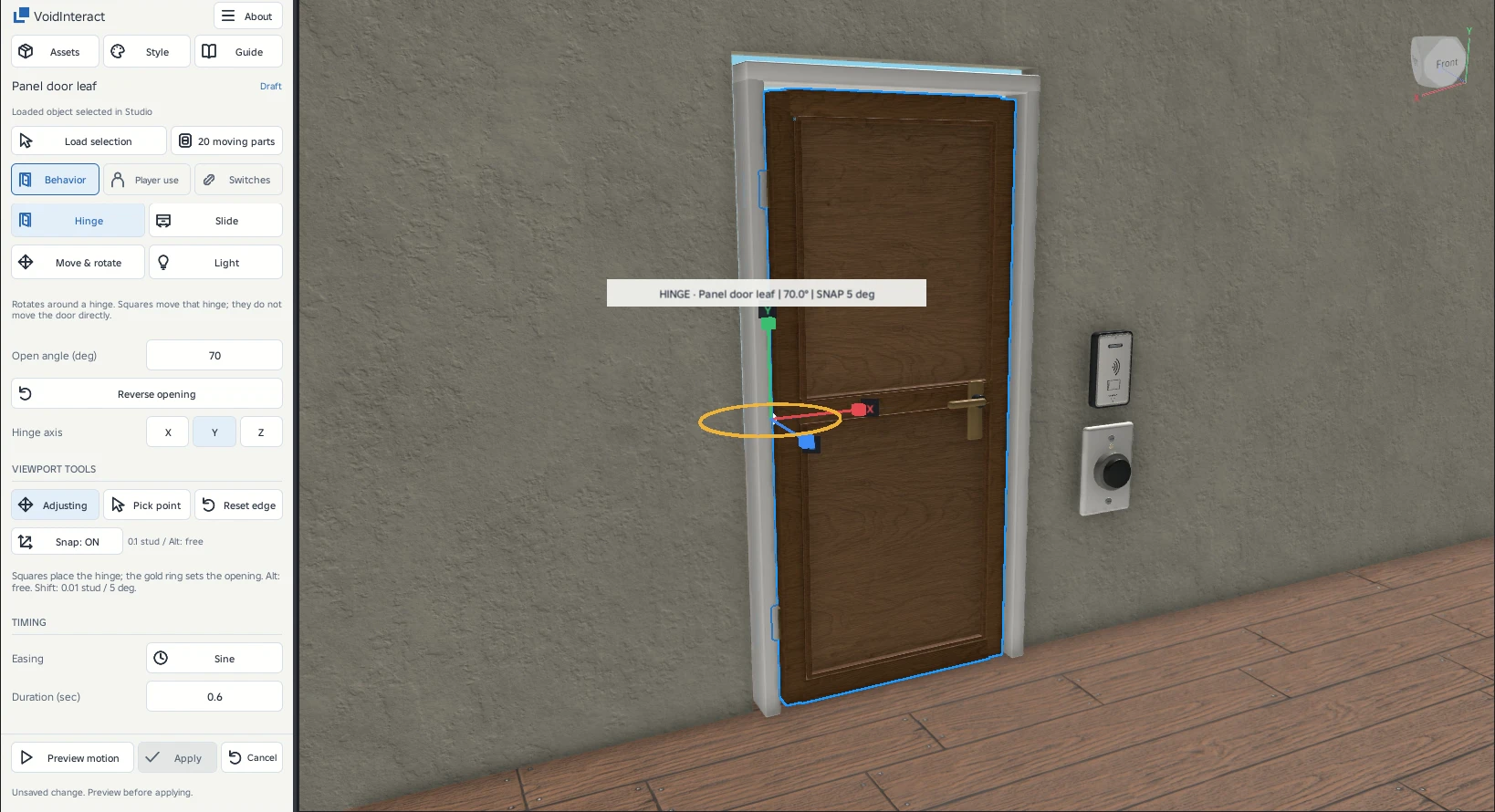
Check the whole route
Click Preview motion and wait for the complete route before Apply. Inspect clearance from the frame, walls and handles. A valid endpoint does not prove the leaf avoids obstacles during travel. This is anchored kinematic motion, not a freely simulated physical hinge.
Default edge and explicit reset
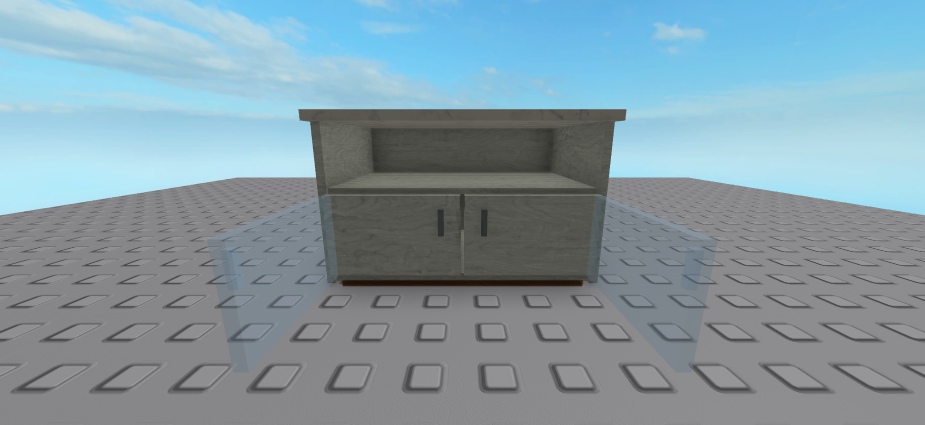
A new hinge starts at a generic edge of the moving bounds. This does not detect a physical hinge or decide which side a door should use. Two opposite cabinet doors can initially choose the same local edge.
The hinge is stored relative to the source pivot, so moving or rotating the source preserves that relationship. A saved offset hinge is retained and labelled OFFSET HINGE. Reset edge places it on the nearest bounds edge to its current side and recenters the other coordinates. It does not move the original geometry or change the opening angle.
Choose the hinge side
If the left door pivots from its right edge, check the hinge position before changing the angle. Use Other hinge side to mirror the hinge to the opposite side and reverse the opening angle with it.
| Control | Use it when | What changes |
|---|---|---|
| Other hinge side | The pivot is on the wrong side of the door. | Mirrors the hinge across the moving bounds and reverses the angle. Other hinge offsets are retained. |
| Reverse opening | The hinge is correct, but the door swings inward instead of outward. | Reverses the angle only. The hinge stays in place. |
| Reset edge | You dragged the hinge away from its intended edge. | Returns it to the nearest bounds edge on its current side and centers the other coordinates. The angle stays unchanged. |
Correct a saved door
- Select the affected moving leafInclude its handle, keep the cabinet frame separate, then choose Load selection.
- Choose Behavior → Hinge → Other hinge sideThe preview moves to the opposite hinge side. The original geometry stays in place.
- Check the opening directionIf you already reversed the angle, use Reverse opening if needed. Local X/Y/Z and angle signs depend on your model. Do not copy another door’s numbers blindly.
- Preview motion, then ApplyReview the whole path, then test opening and closing in Play. Studio Undo restores the previous saved settings.
If your installed copy has no Other hinge side button, use the hinge handles or Pick point to place the pivot on the intended edge, then set the opening direction, Preview and Apply.
Gentle snapping
With Snap on, hinge and interaction-point handles can settle on a nearby bounds edge or center. Drag farther to leave that snap point. The other axes stay unchanged.
Position handles use 0.1 stud steps. Hold Shift for 0.01 stud movement or 5° rotation. Hold Alt or turn Snap off for free movement.
Window example
For the practice-room CasementWindow, select its seven moving members, keep Y as the axis and place the hinge on the left stile. Use 70 degrees and 0.65 seconds. Preview before Apply. The casing, sill, mullion and fixed right glass stay still. Transparent glass can make picking ambiguous. Pick the visible stile and fine-tune with Edit.